
Yahoo! Inbox Guide
Want to make sure StyleBlueprint emails always land in your inbox? It’s quick and easy. Just add us to your Yahoo Contacts or mark one of our emails as “Not Spam.” That tells Yahoo you trust us. If one of our emails has already landed in Spam, don’t worry—you can fix it in seconds.
Follow the steps below to keep StyleBlueprint right where it belongs.
Add StyleBlueprint as a Contact
Adding us to your contacts lets Yahoo know you want to receive emails from us.
In Yahoo Mail, click the Contacts icon in the right sidebar.

Click the “Add a new contact.” button

Enter the following details:
First Name: StyleBlueprint
Email Address: [email protected]
Click Save.
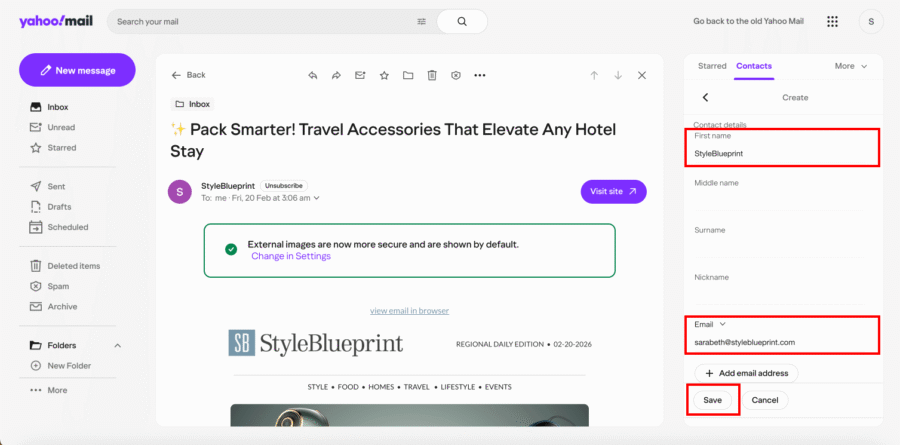
That’s it—Yahoo will now recognize StyleBlueprint as a trusted sender.
You can find more information about adding contacts in Yahoo Mail here.
Move a StyleBlueprint Email Out of Spam
If one of our emails ends up in your Spam folder, you can quickly move it and prevent that from happening again.
Click “Spam” in the left sidebar.

Open the StyleBlueprint email.
Click “Not Spam” icon at the top of the page.

The email will automatically move to your inbox, and future StyleBlueprint emails should follow.
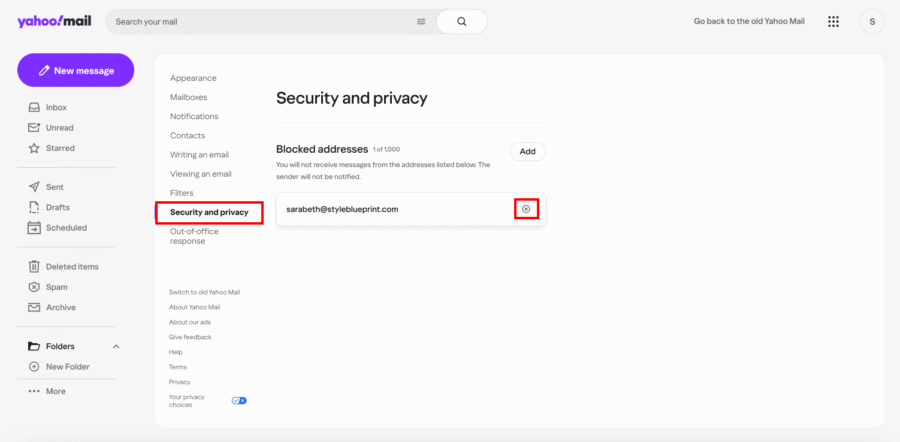
Unblock StyleBlueprint (If Needed)
If you’ve previously blocked our email address, you can easily remove it from your blocked list.
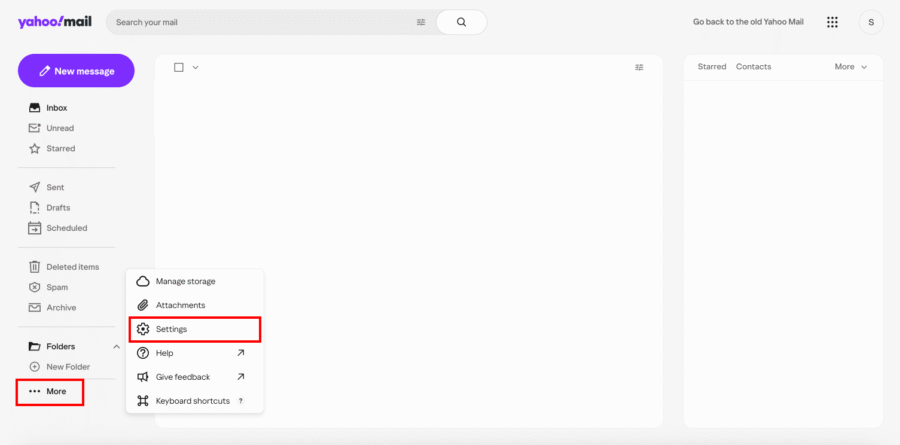
Click the Settings icon in the right sidebar.
Select “More Settings.”
Click “Security and Privacy.”
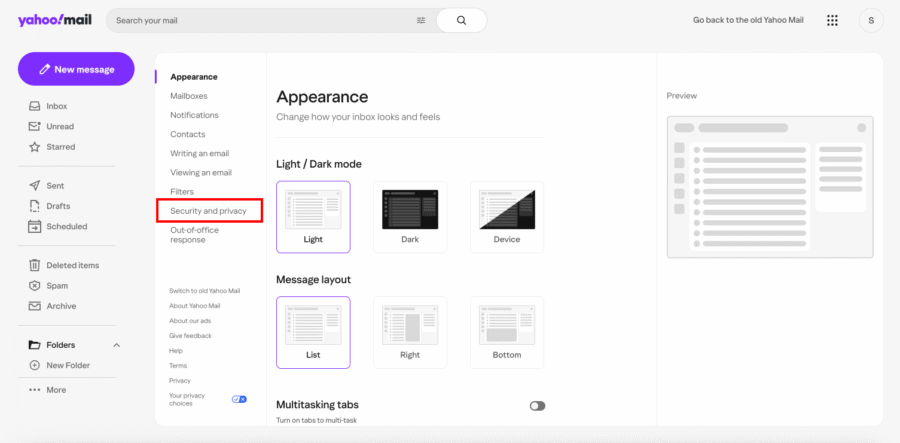
Look for [email protected] in your blocked addresses list.
Click the Delete (trash) icon next to it.
Success! StyleBlueprint will now head straight to your inbox so you won’t miss weekend guides, recipes, local finds, and event highlights. Happy reading!