

Outlook Inbox Guide
Want to make sure StyleBlueprint emails always show up in your inbox (and not in Junk)? It’s easy. Simply add us to your Outlook Contacts, mark us as “Not Junk” if needed, or create a rule that ensures we always land in your Inbox. These quick steps help Outlook recognize StyleBlueprint as a trusted sender.
Follow the guides below to keep us front and center.
Add StyleBlueprint as a Contact
Adding us to your contacts tells Outlook that you want to hear from us.
Open an email from StyleBlueprint.
Hover over the sender’s name or email address until the contact card appears.
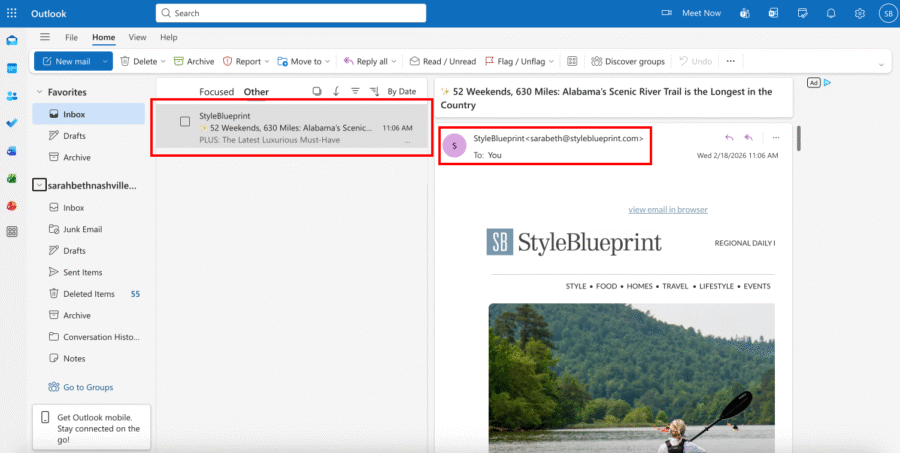
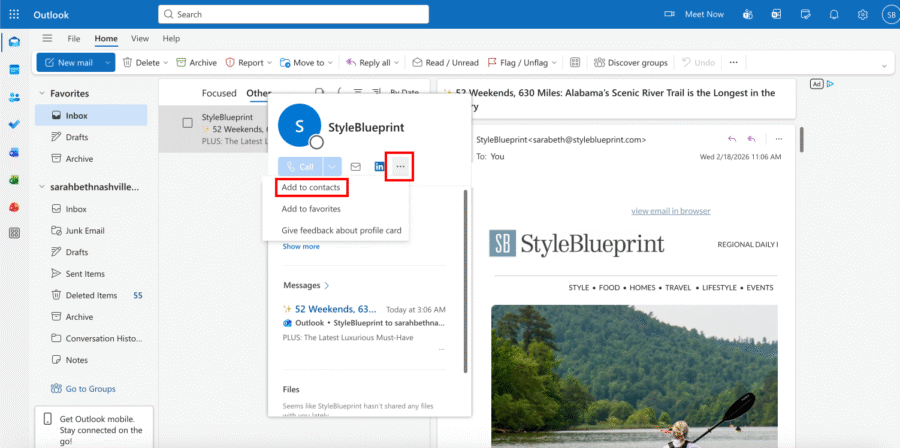
Click the three dots (More Options) icon.
Select “Add to contacts.”
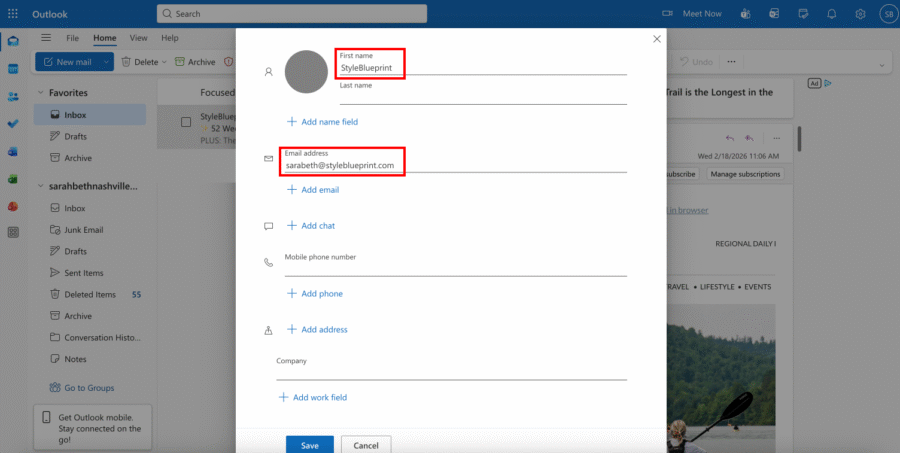
Enter the following details and save:
- First Name: StyleBlueprint
- Email Address: [email protected]
Once saved, Outlook will recognize us as a trusted sender.
You can find more information on adding contacts in Outlook here.
Mark a StyleBlueprint Email as “Not Junk”
If one of our emails lands in your Junk folder, you can quickly fix it—and prevent it from happening again.
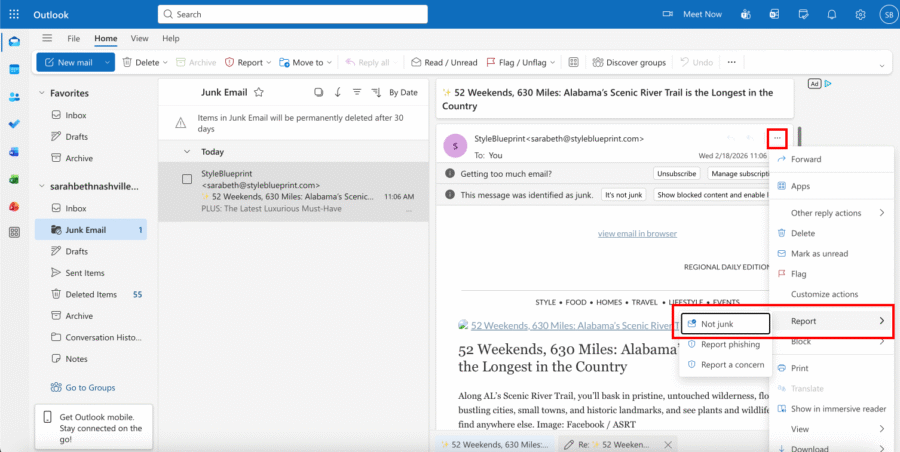
Click “Junk Email” in the left sidebar.
Open the StyleBlueprint email.
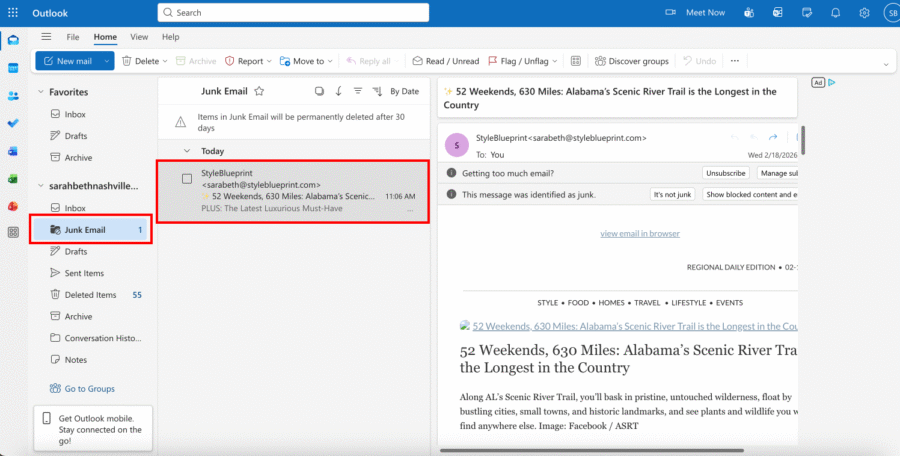
Click the three dots (More Options) in the top-right corner.
Select “Report” → “Not Junk.”
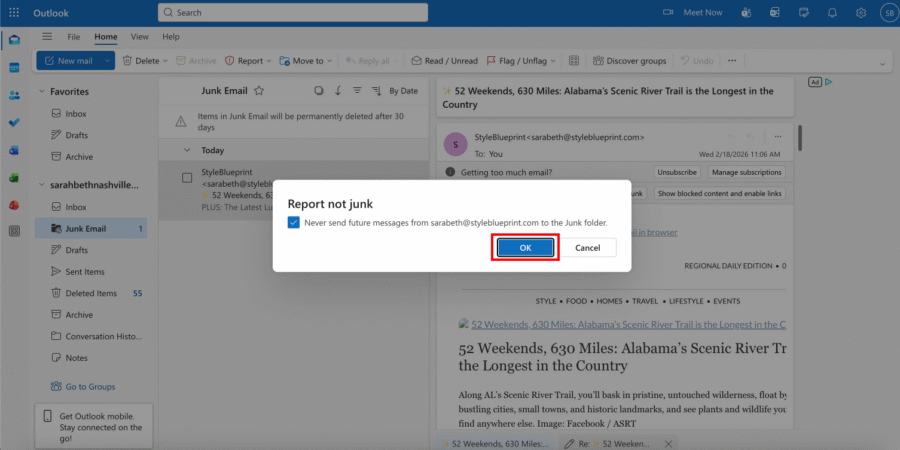
When prompted, confirm by clicking “OK” to add us to Safe Senders.
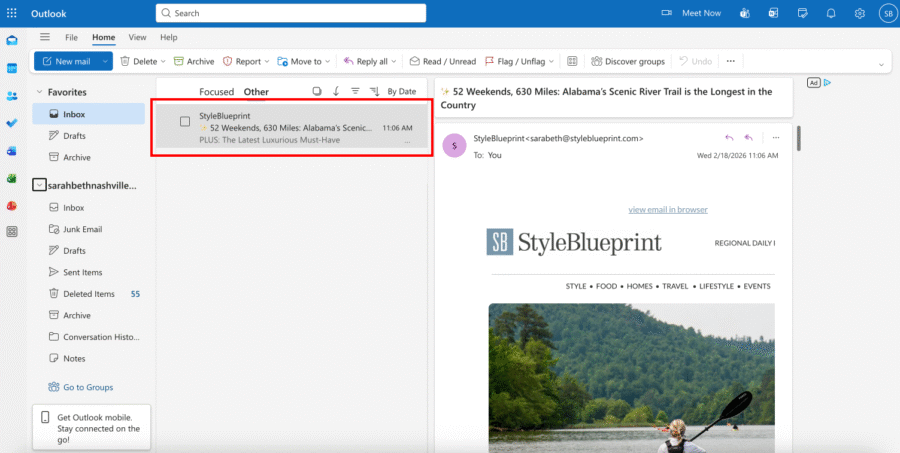
Future emails from StyleBlueprint should now go directly to your inbox.
Create a Rule to Always Deliver to Your Inbox
For extra peace of mind, you can create a rule that automatically moves StyleBlueprint emails into your Inbox.
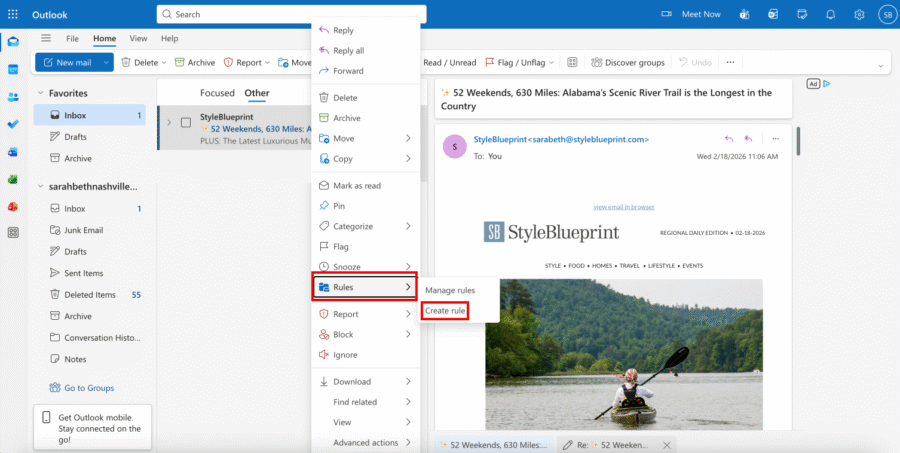
Find an email from StyleBlueprint.
Right-click the email.
Hover over “Rules.”
Select “Create Rule.”
Check the box next to “From [email protected].”
Choose “Move the item to folder.”
Select “Inbox.”
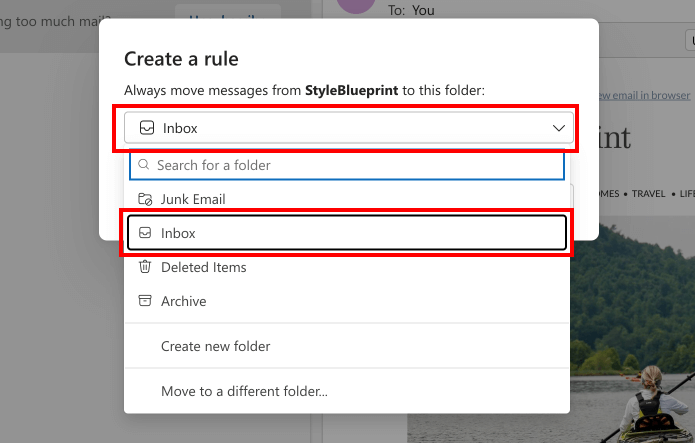
Click “OK” to save.

You can find more information on creating rules in Outlook here.
Success! StyleBlueprint will now head straight to your inbox so you won’t miss local guides, recipes, events, and weekend inspiration. Happy reading!