
Ad

Gmail Inbox Guide

Want to ensure StyleBlueprint always lands right where you can see it? It’s easy! Simply add our email address to your Gmail Contacts or mark us as a VIP. And if one of our emails has already slipped into your junk folder, don’t worry—you can quickly teach your inbox that we’re friends (and not spam!) so it doesn’t happen again. Just follow the simple guides below.

Move us to your primary inbox

Guide for Desktop

Locate the email under one of the categories tabs. The categories can be found at the top of the inbox page.

Screenshot of a Gmail inbox showing the Primary, Promotions, and Social tabs, with one unread email in the Primary tab. The Promotions tab is highlighted with a red box for easy Gmail Whitelisting reference.

Once you have located the StyleBlueprint email, drag & drop this email into the “Primary” tab at the top of the inbox page.
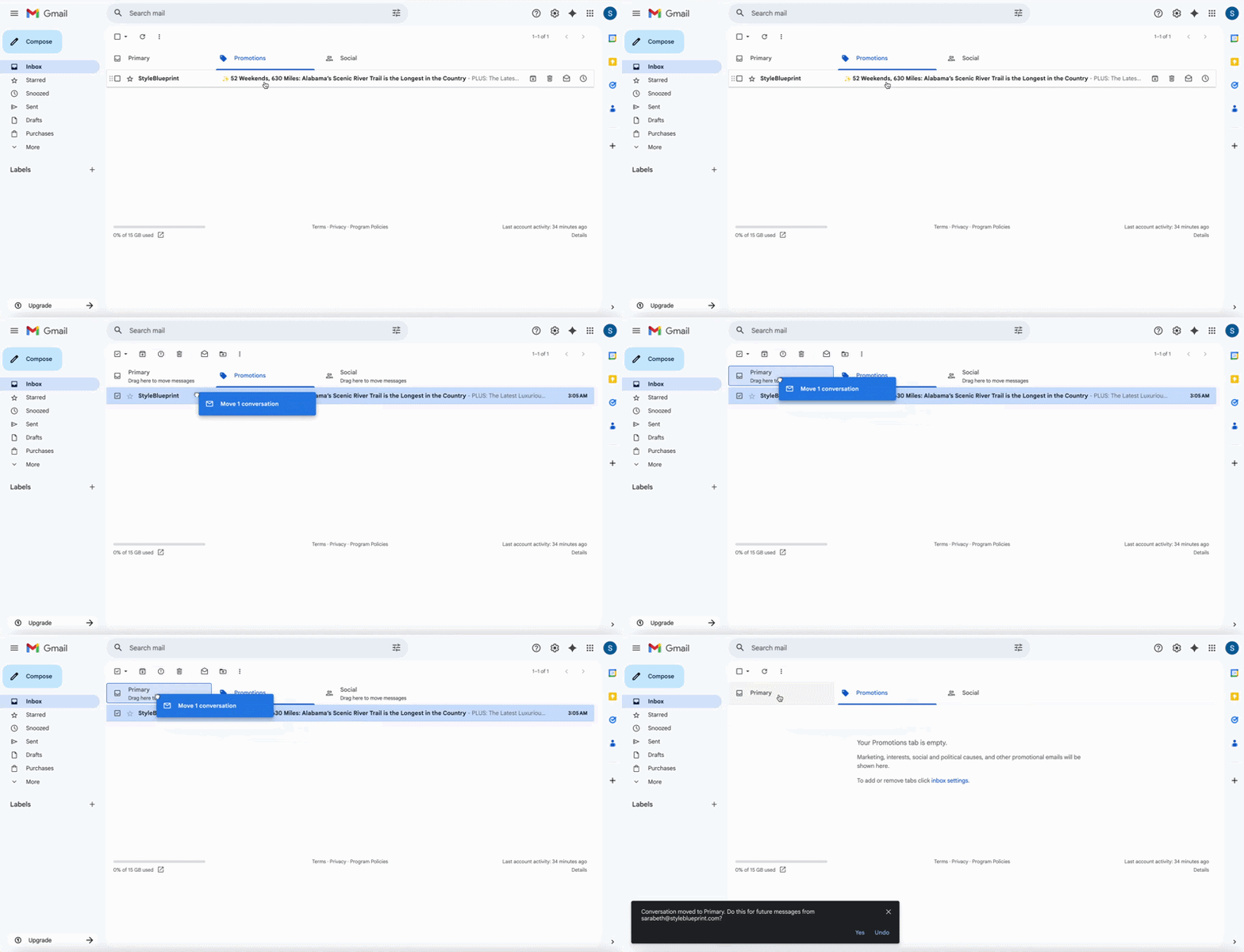
A Gmail inbox shows one unread email in the Promotions tab, with the subject "52 Weekends, 400 Miles: Alabama’s Scenic River Trail is the Longest in the Country," highlighting tips for Gmail whitelisting to improve your email deliverability.

Confirm future emails in Primary inbox. When prompted with a dialogue message: click “yes” to ensure all future emails from StyleBlueprint go to your Primary mailbox.
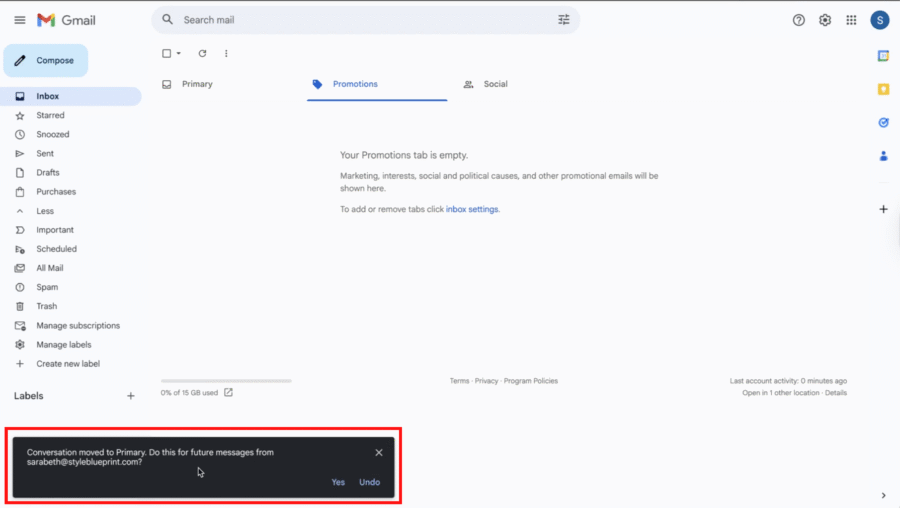
Screenshot of a Gmail inbox with the Promotions tab selected, displaying a whitelisting notification that a conversation was moved to Primary, along with options to undo or confirm the action—a helpful guide for managing your emails.

Guide for Mobile

Open the gmail app, locate the StyleBlueprint email and tap on it. Tap on the more options icon (3 dots) in the top right corner.

In the menu that just opened, tap “Move.” Add the email to your primary inbox by selecting “Primary.”
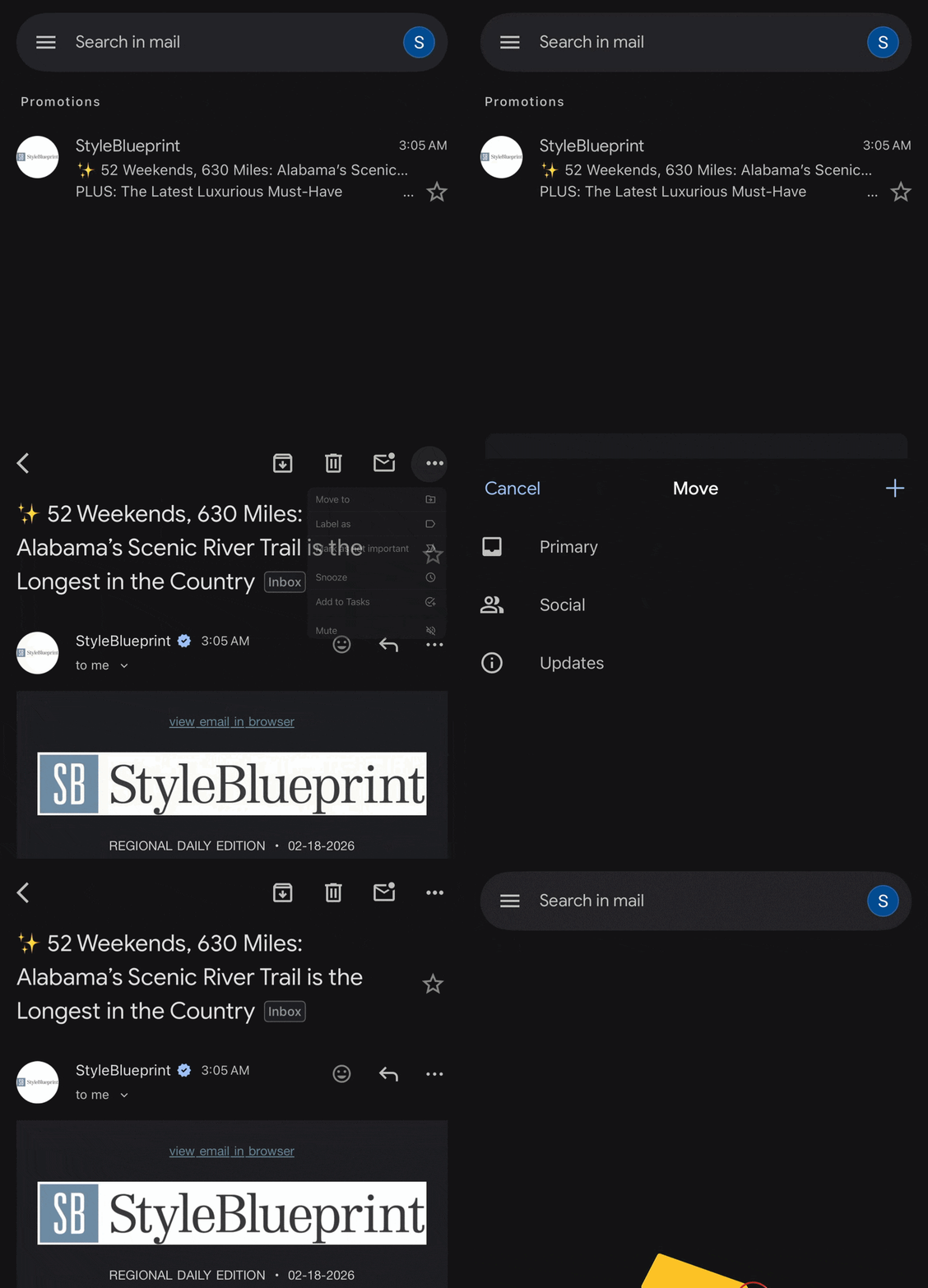
A Gmail inbox screen displays one promotional email from StyleBlueprint—your guide to Alabama’s scenic drives and luxury must-haves—received at 3:05 AM. Whitelisting ensures future guides land right in your inbox.

Create rules to filter StyleBlueprint emails

In the search box at the top, click the Show search options icon.

Gmail inbox with one unread email; the "Select" checkbox icon in the toolbar is highlighted with a red box as part of a whitelisting guide.

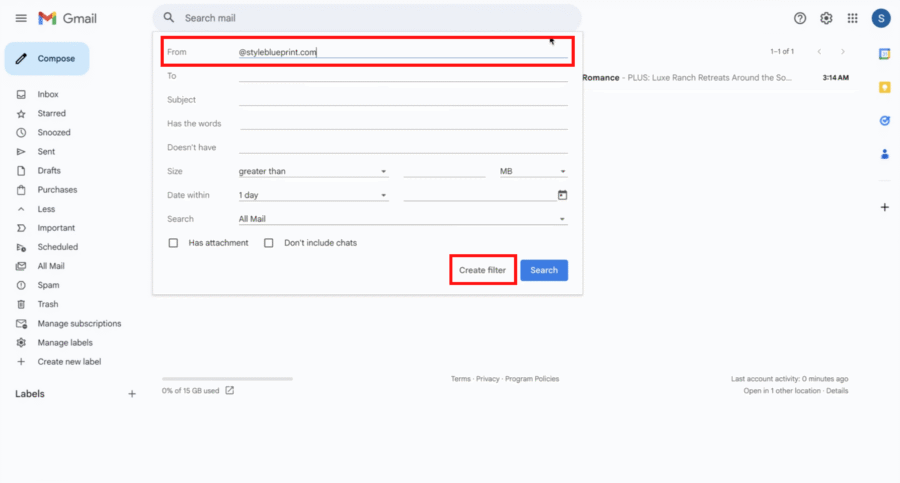
In the “From” field, enter our sending domain @styleblueprint.com.

Click “Create filter

Gmail filter setup screen with “From” field filled, showing whitelisting options to refine emails and a “Create filter” button highlighted for an easy guide.

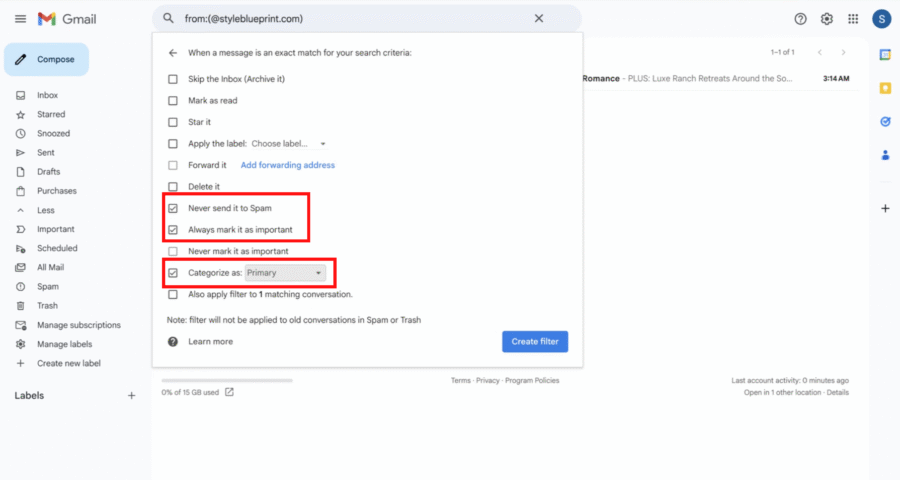
Select “Never send it to Spam

Select “Always mark it as important

Select “Categorize as” and choose “Primary

Gmail filter settings window showcasing whitelisting options like "Never send it to Spam," "Always mark it as important," "Categorize as: Primary," and a highlighted "Create filter" button—your guide to managing email delivery.

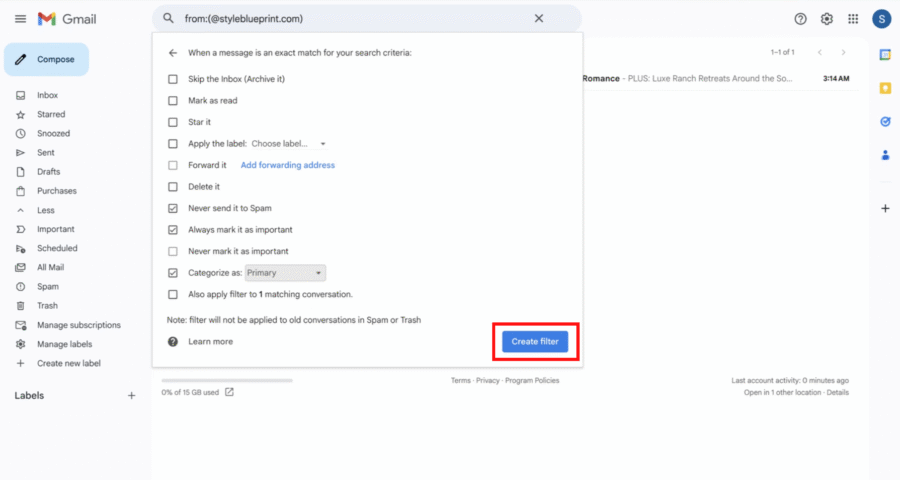
Click “Create filter

Gmail filter settings are shown for messages from a specific email address, with the "Create filter" button highlighted in blue at the bottom, serving as a visual guide for whitelisting desired contacts.

You can find more information about creating filters in Gmail here.

Add StyleBlueprint as a contact

Go to your Google Contacts: https://contacts.google.com/.

Click the “Create contact” button on the left side menu

Google Contacts interface showing the "Create contact" menu expanded, with options to create a contact or multiple contacts—a helpful guide for whitelisting addresses in Gmail. The contact list is currently empty.

Enter a contact name

Enter [email protected] in the email field

Click save

A Google Contacts form is shown with the first name "StyleBlueprint" and email "sarabeth@styleblueprint.com" entered; relevant fields are highlighted with red boxes for a Gmail whitelisting guide.

You can find more information on adding a contact in Gmail here.

Success! You’ve successfully moved us to your Primary inbox. All future StyleBlueprint emails will head straight there, so you won’t miss a thing. Happy reading!